
If you want to create sharp and professional videos on Android, CapCut APK 4K Export is an important feature to understand. CapCut offers high-resolution export options, including 4K on supported devices.
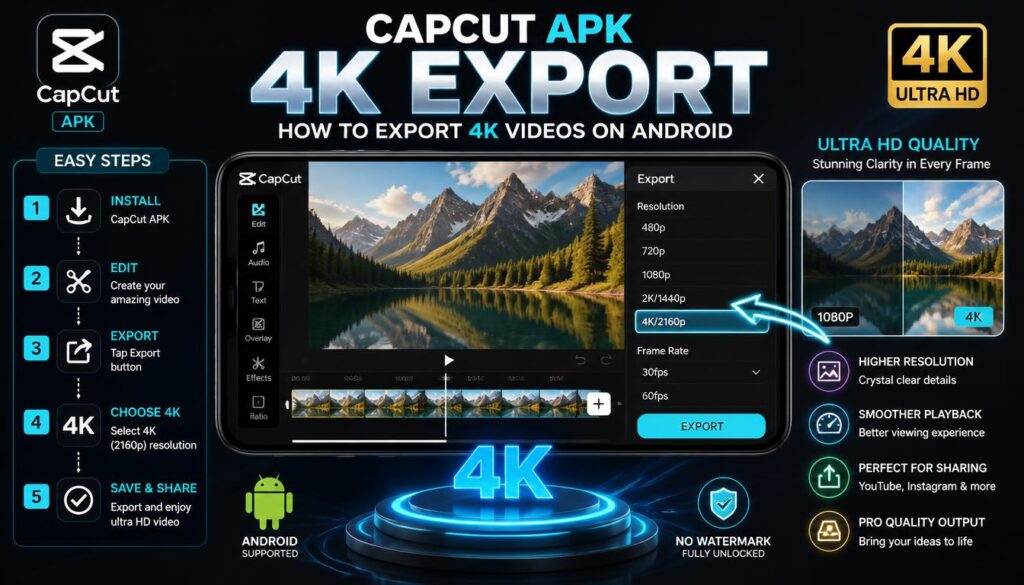
The official CapCut Android listing says the app supports custom export resolution, 4K at 60fps, and smart HDR. However, CapCut also explains that 4K availability on Android depends on the device, operating system, project, and source media.
This means not every Android phone will show the 4K option. The export menu automatically depends on what your device and project can handle.
What Is CapCut 4K Export?
4K export means saving a video at a resolution of up to 3840 × 2160 pixels.
This provides four times as many pixels as Full HD 1080p. As a result, compatible videos can look sharper on large displays.
However, exporting in 4K does not automatically improve low-resolution footage. If your original clips are only 720p or 1080p, increasing the export resolution cannot recreate missing detail.
For the best result, start with high-quality footage.
Does CapCut APK Support 4K Export?
Yes. CapCut’s official Android listing advertises support for 4K 60fps exports.
Still, the feature is not universal.
CapCut’s official help page says mobile 2K and 4K export depends on hardware, operating system, app version, platform, and original media.
Therefore, your phone may show:
- 720p
- 1080p
- 2K
- 4K
The available options can differ between devices.
How to Export 4K in CapCut APK
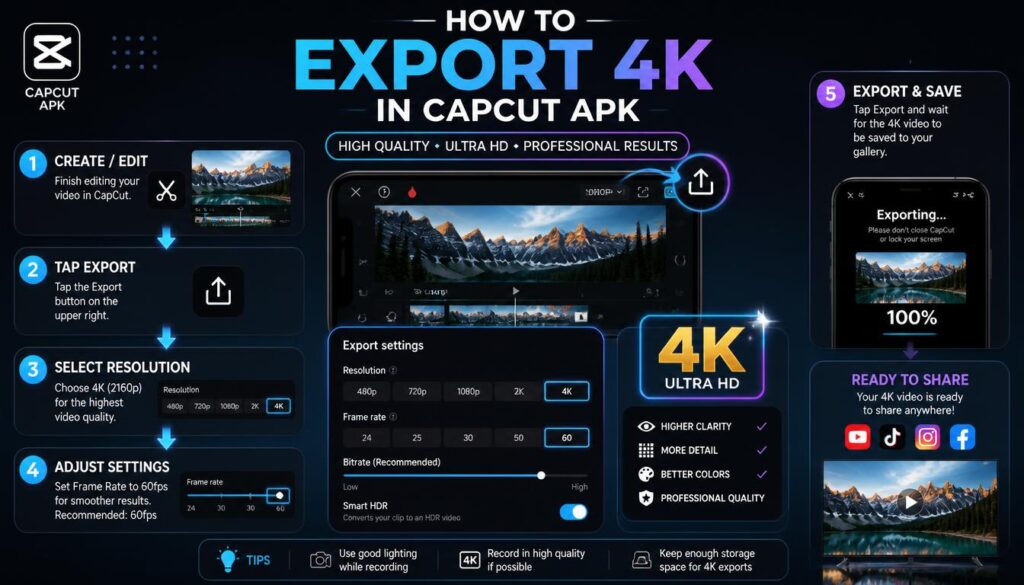
The process is simple when your device supports the feature.
Step 1: Open CapCut
Launch the official CapCut app on your Android phone.
Create a new project or open an existing project.
Step 2: Add Your 4K Video
Import your original video clips.
For the best output, use footage recorded in 4K when possible.
If all your clips are 1080p, selecting 4K export will not restore the missing details.
Step 3: Finish Your Edit
Trim your clips and add the effects, captions, music, transitions, or other elements you need.
Check the complete timeline before exporting.
Step 4: Open Export Settings
Tap the Export button in the top-right corner.
Depending on your version and device, you should see a resolution option near the Export button.
CapCut’s official instructions say that supported devices can show 2K and 4K options in this menu.
Step 5: Select 4K
Choose 4K or 2160P if it appears.
You may also see a frame-rate option.
Choose a frame rate that matches your original footage when possible.
Step 6: Select the Frame Rate
CapCut can support up to 60fps for compatible 4K exports.
However, do not automatically choose 60fps for every project.
If your original video was recorded at 30fps, exporting at 60fps does not create genuine additional frames.
Step 7: Export the Video
Tap Export and wait for CapCut to render the project.
A 4K video can take longer to export than a 1080p video.
It can also create a much larger file.
Why Is 4K Missing in CapCut?
This is one of the most common questions from Android users.
CapCut explains that 4K availability depends on several factors.
Your Phone May Not Support 4K Encoding
Older or lower-powered Android phones may not provide enough processing capability for 4K export.
Some devices therefore show only 1080p or 2K.
Your Source Video Is Too Low Resolution
CapCut may limit high-resolution export when your project contains only lower-resolution footage.
For example, 720p footage does not contain native 4K detail.
Your Project Settings May Limit Resolution
Some templates or project settings can restrict the available resolution.
If 4K does not appear, check your project setup and create a new project using your original high-resolution footage.
Your App Version May Be Outdated
CapCut recommends using a current version when troubleshooting missing 2K or 4K options.
Update CapCut through Google Play or another official CapCut source.
Regional or Platform Differences
CapCut says feature availability can vary by platform and region.
Therefore, two Android phones can sometimes display different export options.
CapCut 4K Export Settings
For high-quality output, consider these settings:
| Setting | Recommended Choice |
|---|---|
| Resolution | 4K / 2160p |
| Frame rate | Match original footage |
| Source footage | Native 4K when possible |
| Bitrate | Higher for better quality |
| Format | Based on your target platform |
| Storage | Keep sufficient free space |
A higher bitrate generally preserves more detail. However, it also increases the final file size.
CapCut’s support material also recommends higher bitrate settings when aiming for sharper 4K output.
Does 4K Export Make Videos Better?
It can, but only when the source and project support it.
If you record a video with a good 4K camera and export it at 4K, you can retain much more detail.
However, exporting a compressed 1080p clip as 4K does not magically make it native 4K.
For the best results, use high-quality original footage from the beginning.
CapCut 4K Export and File Size
4K videos usually require more storage than 1080p videos.
The final size depends on factors such as:
- Video duration
- Bitrate
- Frame rate
- Compression
- Codec
- Audio settings
A long 4K project can therefore consume significant storage space.
Before exporting, make sure your Android phone has enough free storage.
CapCut also notes that insufficient storage can cause export problems.
How to Fix CapCut 4K Export Problems
Free Up Storage
Delete unnecessary files or move old videos to another storage location.
4K rendering can require additional temporary storage.
Restart CapCut
Close the app completely and open it again.
This can solve temporary rendering problems.
Clear Cache
On Android, you can usually go to:
Settings → Apps → CapCut → Storage → Clear Cache
Avoid clearing app data unless you understand what information may be removed.
Update CapCut
Install the latest official version available for your device.
CapCut recommends updating the application when dealing with export problems.
Lower the Export Settings
If 4K export fails repeatedly, try 2K or 1080p.
This can reduce processing requirements and file size.
CapCut 4K vs 1080p
| Feature | 1080p | 4K |
|---|---|---|
| Resolution | 1920 × 1080 | 3840 × 2160 |
| File size | Smaller | Larger |
| Export time | Usually faster | Usually slower |
| Device load | Lower | Higher |
| Detail | Good | Higher with suitable source |
| Storage requirement | Lower | Higher |
For social media content, 1080p can still provide excellent results.
For large screens, YouTube videos, or projects where maximum detail matters, 4K can be useful.
Is CapCut 4K Export Free?
CapCut’s current help documentation says some advanced capabilities, including 4K/60fps export, can be part of the Pro tier.
The exact export restrictions can vary by platform, project, and account.
If CapCut shows a Pro prompt when you select 4K, follow the subscription information displayed in the official app.
Avoid modified APKs that claim to unlock paid export features.
An unofficial APK can introduce security, privacy, compatibility, and update risks.
Tips for Better 4K Videos
Start with native 4K footage whenever possible.
Keep the original video quality during editing.
Avoid excessive compression before importing clips.
Match the export frame rate to the source.
Use a suitable bitrate.
Also, keep enough free storage before starting a long 4K export.
Finally, watch the exported file outside CapCut. This helps you check the actual final quality.
Frequently Asked Questions
Can CapCut export videos in 4K?
Yes. CapCut supports 4K export on compatible platforms and devices. The official Android listing advertises 4K 60fps export support.
Why can’t I see 4K in CapCut?
Your phone, project, source footage, app version, operating system, or region may limit the available resolution. CapCut says 4K is not supported on every Android device.
Can 1080p video become real 4K?
No. You can export a 1080p project at a higher resolution in some workflows, but that does not create the detail captured by native 4K footage.
Does CapCut support 4K at 60fps?
Yes, CapCut advertises 4K 60fps export support. However, the option depends on device and project compatibility.
Is CapCut 4K export a Pro feature?
CapCut’s current help documentation identifies 4K/60fps export among capabilities that can require CapCut Pro. Availability and restrictions can vary by platform and project.
Conclusion
CapCut APK 4K Export can help Android users create high-resolution videos with more detail and better quality on compatible devices.
The official CapCut app supports 4K export, including 4K 60fps in its advertised capabilities. However, Android users may not see the option because hardware, source footage, project settings, app version, or regional availability can affect the feature.
For reliable results, use high-quality original footage, select a suitable frame rate, keep enough storage available, and use the official CapCut application.